Corporate policy adherence · Microsoft 365
Verify adherence to your organisation's policies.
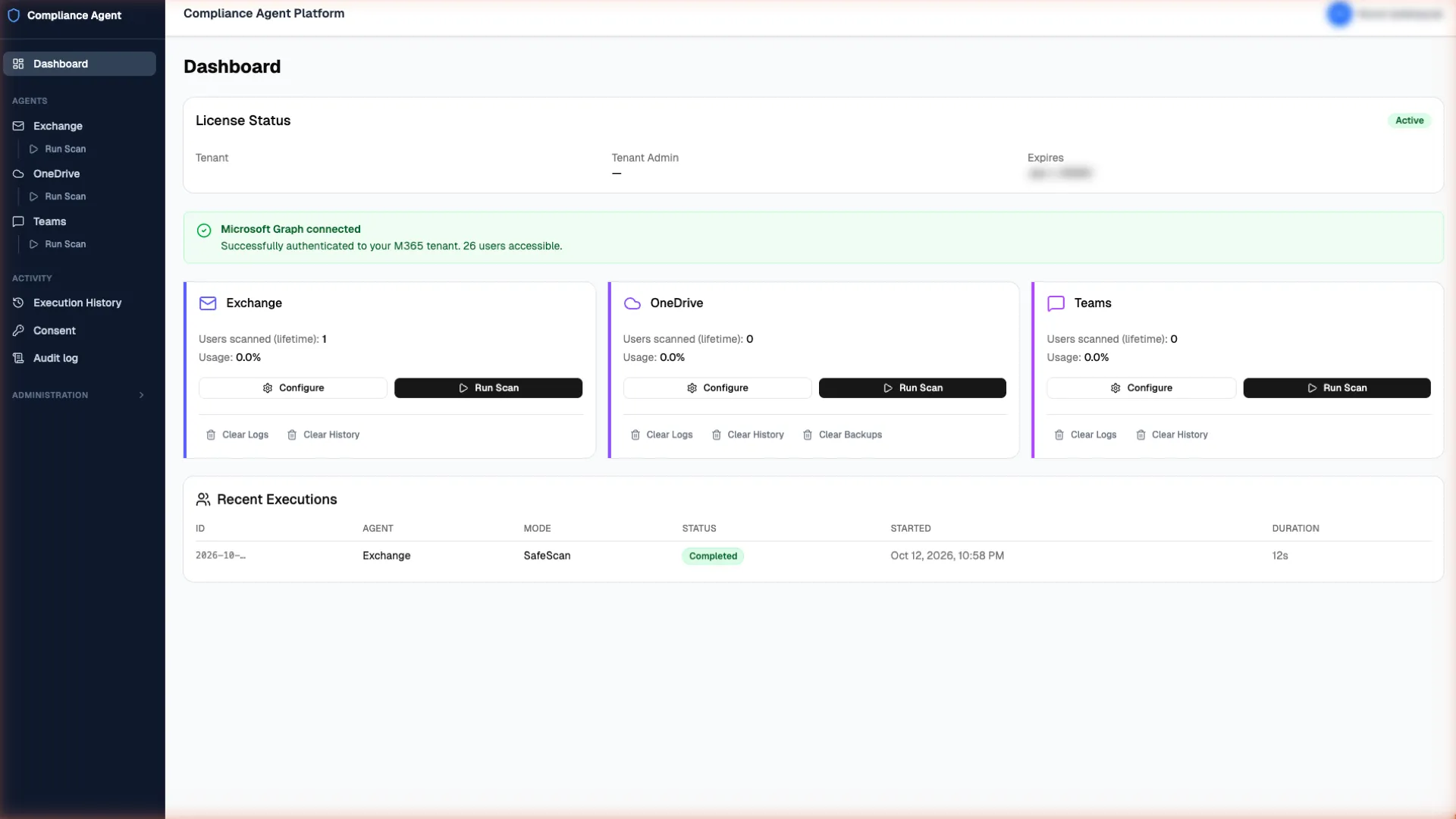
Scan Exchange, OneDrive, Teams and on-premises disks for the keywords your organisation defines; you take the action on the findings.
Runs in your own Azure subscription
Today's picture
Policies are written down; applying them cannot be shown.
Your policies are written down, but seeing and showing whether they are applied in e-mail, files and chats is hard.
-
In e-mail
Wording that goes against policy piles up unnoticed in threads.
-
In OneDrive
Shared files can keep content that breaks your rules.
-
In Teams chats
Rules slip in fast conversation and leave no trace.
-
No evidence
If you cannot show that you checked with permission, you cannot prove it.
Product
What is Compliance Agent?
A tool that scans for the keywords your organisation defines, within the frame of adherence to its policies.
- Connect
- Scan with Safe Scan
- Review, and take the action yourself
- 4 scan areas
- Exchange, OneDrive, Teams and on-premises disks.
- Your keywords
- You define your own rules from your policies; ready-made rule sets are there if you want them.
- Your decision
- After a scan: report, warn or act. Every action is the organisation's decision. No action is taken automatically.
Scope
Four scan areas, your rules
- 01
Exchange
Exchange Online and on-premises Exchange Server; subject and message body.
- 02
OneDrive
Word, Excel, PowerPoint, PDF, CSV and plain text. Files shared outside the organisation are flagged.
- 03
Microsoft Teams
One-to-one chats; the messages an employee sent, if that employee gave permission.
- 04
DiskScanner
Scanning of on-premises disk areas; older data that never moved to the cloud.
Rules
- Keywords (CSV import)
- Patterns (no regex skills needed)
- User group selection
- Try on sample text before scanning
Rules are defined by your organisation from its policies. Whether a keyword or pattern is appropriate is your assessment.
Ready-made rule packs are optional; they are switched on separately and tried on sample text with Test rules.
Clear limits
The organisation decides
What it does
- Scans for your organisation's keywords
- Starts with a Safe Scan that touches nothing
- If you choose, applies an action only to what you selected, within your limit
- Records every administrative step
What it does not do
- It is not designed to look into a particular employee
- Takes no action unless you switch it on
- Does not export your data
- Does not scan without employee permission
The organisation takes the action: it sets the scope, the rules and the decision to act; acting is a choice. Every step goes into the audit log.
How it runs
Three modes. First, a scan that touches nothing.
-
Mode 1
Safe Scan
Scans and reports only; touches nothing. Always start here.
-
Mode 2
Selective Action
A person reviews the findings; the action is applied only to the items they tick.
-
Mode 3
Direct Action
When you trust the rules, scan and action happen in one run; it stops at the hard action limit.
Action modes stay off until an administrator turns them on. In Exchange, OneDrive and Teams an action cannot be reversed, which is why modes, the hard action limit, roles and the audit log protect it.
Alongside Microsoft tools
Not instead of Purview, next to it
Microsoft Purview
- Helps you assess where you stand
- If you already use it, you have made the right investment
Compliance Agent
- Scans for your organisation's keywords; if you choose, you apply an action to what you selected
- Protected by the hard action limit and the audit log
- The decision to act is yours
- Shows what you did
- Results stay in your own Azure storage
Purview assesses where you stand; Compliance Agent helps you verify adherence to your organisation's policies.
Preventive technical measures (for example filtering and blocking) come first; Compliance Agent does not replace them.
- Will it take an action without us deciding to?
- No. Action modes stay off until an administrator turns them on. You can always start with Safe Scan, which scans and reports only.
- What do the results show?
- The rule that matched is recorded. To see the full content, Reveal asks for a duration, a reason and a request number; every view is written to the audit log.
- Where is our data stored?
- The product runs in your own Azure subscription. Scan results, logs, the audit log and configuration stay in your own Azure storage.
Rather than tell you, let us show you: a live demo.
Let us walk through Compliance Agent together in a short live session. It deploys from Azure Marketplace into your own subscription in about 10 minutes; a Global Administrator completes the one-time setup step.